
Add files
Once you have a notebook, you fill it with the material you want to study. Kyonote reads what you add and uses it as the source for every tool it makes.
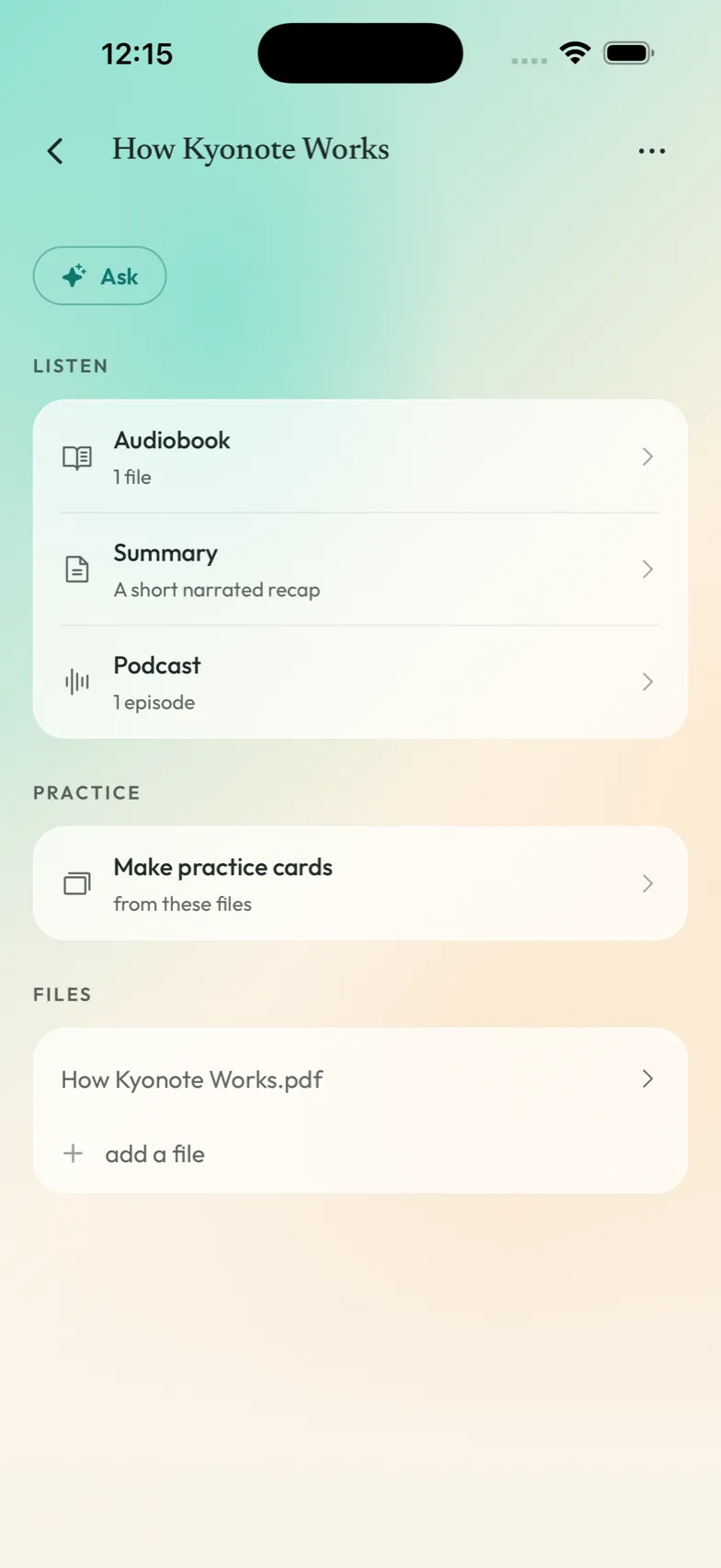
What you can add
PDFs
Lecture slides, readings, past papers, handouts — anything you have as a PDF. When you tap Add file, your phone opens a file picker so you can choose a PDF from your files or cloud storage.
Kyonote reads the text in the PDF and gets it ready. Clean, text-based PDFs work best; a scanned image with no text underneath has nothing for Kyonote to read.
Your own notes
You can also type or paste notes straight into a notebook — your own summaries, class notes, or anything you've written elsewhere. These count just like a file: Kyonote uses them as source material.
A few things to keep in mind
- Focused beats huge. A single chapter makes sharper study tools than a whole textbook. If you've got a lot, split it across notebooks.
- Add as you go. You don't have to add everything at once. Add this week's reading, study it, then add next week's.
- Text is what matters. Kyonote works from the words. Image-only PDFs and diagrams without captions won't give it much to work with.
After you've added files
Everything you make from here uses these files. Head to the study tools:
- Podcasts — two hosts talk through your material.
- Reader / Listen — your notes read aloud, like an audiobook.
- Flashcards — a deck built from your files.
- Quizzes — a short quiz from your notes.
- Mock exams — a full practice test from a whole notebook.
Your shelf
The home screen. Every notebook you own, the one you were in the middle of at the top, and a search box that reaches everything.
Study tools
Kyonote makes five things from a notebook — podcasts, a listen/audiobook, flashcards, quizzes, and mock exams. Here's which one to reach for, and when.